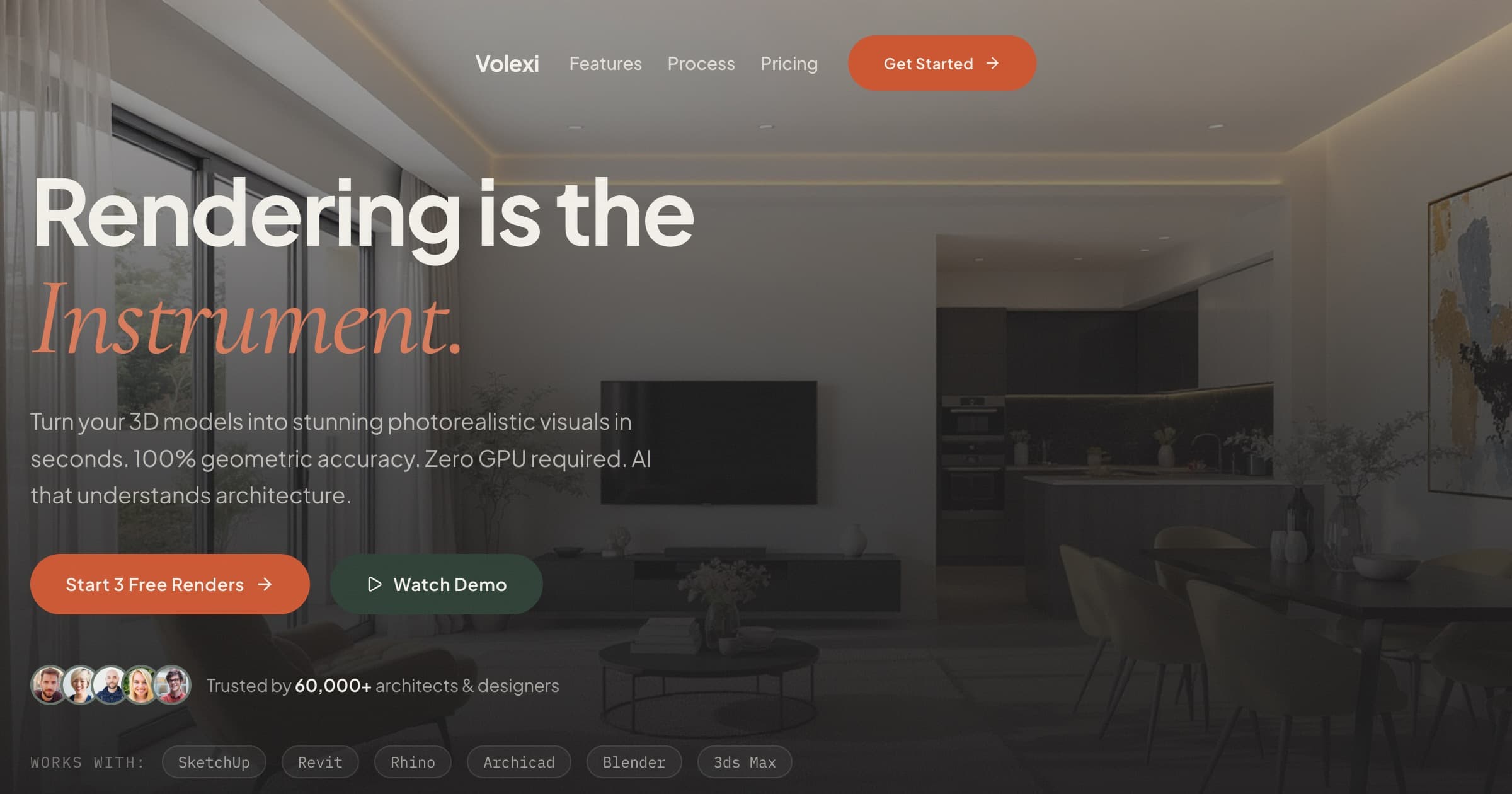
AI render is diffusion-model inference applied to a raster image of an architectural sketch, model export, or photograph to produce a photorealistic still. Unlike traditional offline rendering engines that simulate light physics on a local GPU, AI render runs entirely in the cloud — no local render hardware, no dedicated licence, and no hours-long queue between a design decision and a deliverable image.
We built Volexi on this architecture because the GPU and licence barrier was the biggest friction point we kept hearing from architects describing their rendering workflow. But that's not the only reason. The quality achievable from diffusion-model conditioning has closed the gap considerably for the deliverable types that matter most in early-stage design — concept approvals, client presentations, and planning submissions where photorealism is required but full material simulation is not.
What does an AI render actually do to your sketch?
An AI render engine uses your uploaded image as a conditioning signal, then runs a guided denoising pass through a learned latent space to generate a photorealistic version of the same scene.
The mechanics matter because they determine what gets preserved and what gets reinterpreted. A diffusion model starts from random noise and gradually refines toward a target, steered by both a text prompt and the conditioning image you provide. The conditioning image anchors the composition — it constrains where walls, windows, and structural elements land in the output. But the strength of that constraint depends entirely on which engine you choose, and that choice is the entire decision.
In Blueprint mode — built on the black-forest-labs/flux-canny-pro model — Canny-edge detection reads the line geometry of your source image and hard-constrains the output to match it. We built Blueprint specifically for architectural workflows where wall placement and structural edges cannot drift across iterative renders of the same input. The architectural structure does not wander.
Other engines release more of that constraint, trading geometric fidelity for creative latitude. Muse, built on ByteDance's Seedream 4.5 model, gives the diffusion process genuine freedom to reinterpret the scene — the right mode when you want the AI to reimagine a space rather than apply a material skin to existing geometry.
The text prompt shapes both tone and content. A prompt like 'warm evening lighting, polished concrete floors, Scandinavian palette' tells the AI what materials and atmosphere to generate within the structural frame your image provides. The better the prompt, the tighter the match to your design intent. And because each render is a single credit, you can iterate on prompts without committing to a final output.
How is AI rendering different from V-Ray, Lumion, or Enscape?
Traditional rendering engines simulate light physics on local hardware; AI rendering generates a plausible photorealistic output from a conditioning image, without simulating physics at all.
With V-Ray or Corona Renderer, you configure materials, lights, and camera settings, then wait while the engine computes how photons bounce through your scene. The output is physically accurate in proportion to how carefully you built the scene — render times scale with scene complexity and local GPU capability. For final deliverables requiring precise lighting simulation or material accuracy, this approach remains the benchmark. But the workflow is heavyweight: you need the software, a capable machine, and time.
Real-time engines like Lumion and Enscape make a different trade-off: they rasterize at interactive speeds using a built-in asset library, accepting some accuracy loss in exchange for immediate feedback. But they still require a Windows machine with a GPU, a separate software licence, and familiarity with their own asset and material systems. Our Lumion alternative guide covers where that trade-off lands for Mac users, smaller teams, and practices without a dedicated render workstation.
AI rendering sits in a third category. No local GPU. No render engine licence. No material library to learn. You export a raster image from the CAD tool you already use, upload it, write a prompt, and receive a photorealistic output. And the accuracy trade-off — you can't model the reflectance of a specific marble slab — is often not what you need at the concept and planning stages where AI rendering does most of its work.
Traditional rendering tools are still the right choice when lighting simulation accuracy matters, when materials need physically measured values, or when the deliverable is an animation rather than a still. AI rendering and traditional rendering are not substitutes for each other — they cover different parts of the project timeline.
For a full side-by-side breakdown of the major rendering tools, the rendering software comparison guide covers V-Ray, Lumion, Enscape, Twinmotion, D5 Render, and Volexi across the factors that matter to working architects: platform, GPU requirement, setup overhead, and deliverable type.
Which AI render engine fits your project? The Renderer Fit Matrix
Score each project on two axes — geometry fidelity (how precisely must the output match your source linework?) and creative latitude (how far from the source composition should the AI wander?) — and the right engine becomes obvious.
We call this the Renderer Fit Matrix. It maps the four Volexi engines to four distinct positions on those axes. It eliminates most engine-selection confusion because both questions have a clear answer from the project brief: you know whether a client needs the wall layout respected, and you know whether this render is for a concept board or a planning submission.
- Blueprint (flux-canny-pro) — High fidelity, low creative latitude. Canny-edge conditioning locks output line geometry to your source sketch. Use this for plans, elevations, and any deliverable where preserving the architectural lines exactly is the brief.
- Atelier (nano-banana) — Balanced fidelity and creative latitude. The default engine for new renders. Strong spatial reasoning with instruction-following; picks up your prompt style and applies it to the composition without destroying the underlying structure.
- Studio (nano-banana) — Same input shape as Atelier, lighter weight. Use it for rapid iteration when you want the same composition explored at a lower per-render cost. Quality is comparable to Atelier at typical presentation zoom levels.
- Muse (seedream-4.5) — Low fidelity, high creative latitude. Cinematic, photorealistic reimagining with looser adherence to source geometry. Right for style explorations, hero shots, and mood boards where structural preservation is not the goal.
When we added Muse to the lineup as the fourth engine, the design goal was a credible answer for clients who want the AI to genuinely reimagine a space rather than apply a material skin. Before Muse, our engine set had no good answer for the brief: 'make this feel completely different while keeping the overall proportions.' Now there is one.
In practice, most architectural workflows use two engines per project. Blueprint for the concept-approval stage where the client needs to see that the brief is being respected. Atelier or Muse for presentation renders where creative quality matters more than line-for-line accuracy. Studio slots in as the fast-iteration pass between those stages — same composition, faster output, lower credit cost.
What file formats and CAD tools work with AI rendering?
Volexi accepts JPEG, PNG, and WebP raster images — not native CAD files — so the workflow is: export a raster from your modelling tool, then upload.
This is the step that surprises new users most. Volexi does not ingest .skp, .rvt, .3dm, or any other native CAD format. The raster export is the handoff between your CAD environment and the AI pipeline. And every major architectural modelling tool supports it — the export path is usually File > Export > 2D Graphic or the equivalent.
The workflow applies across all the major architectural CAD tools:
- SketchUp — export a scene view as PNG from File > Export > 2D Graphic.
- Revit — export an elevation or camera view as PNG via the built-in image export.
- Rhino — use the Render command or export a named view to JPEG or PNG.
- Archicad — export a rendered viewport or 2D elevation view to PNG.
- Blender — render a still frame and save to PNG or JPEG.
- 3ds Max — output a still from the frame buffer to PNG.
- Vectorworks — export a rendered viewport or 2D elevation.
- Chief Architect — export a camera view or elevation from File > Export.
For interior rendering workflows specifically, we've found that applying a neutral mid-grey base material to all surfaces before export gives the AI a clean geometry signal — without colour information that might conflict with the material prompt.
What does AI rendering cost in 2026?
Volexi uses a pay-as-you-go credit model: one credit covers one render or one edit, regardless of which engine you use.
New accounts start with the $5 Intro pack of 15 credits, enough to test each major engine type several times before committing to a larger pack. After that, the Starter pack is $12 for 50 credits, Pro (the most popular) is $39 for 200 credits, and Studio is $49 for 600 credits. Credits never expire and there's no subscription. See Volexi credit pack details for the current options.
Each render is logged against your account with a credit_transactions row, so every account has a full audit trail of what ran and when. And the per-render pricing changes how teams approach iteration. Traditional rendering workflows impose an implicit cost on every iteration — in GPU-hours or licence-hours — which pushes teams toward fewer, higher-stakes renders. Credit-pack pricing at this scale makes it practical to run eight prompt variations on the same base image, evaluate them together, and only share the best one with a client.
Go deeper: AI architectural rendering
Our full guide to AI architectural rendering covers the complete workflow — from choosing an engine to exporting final deliverables — with worked examples across interior, exterior, and site-plan project types.