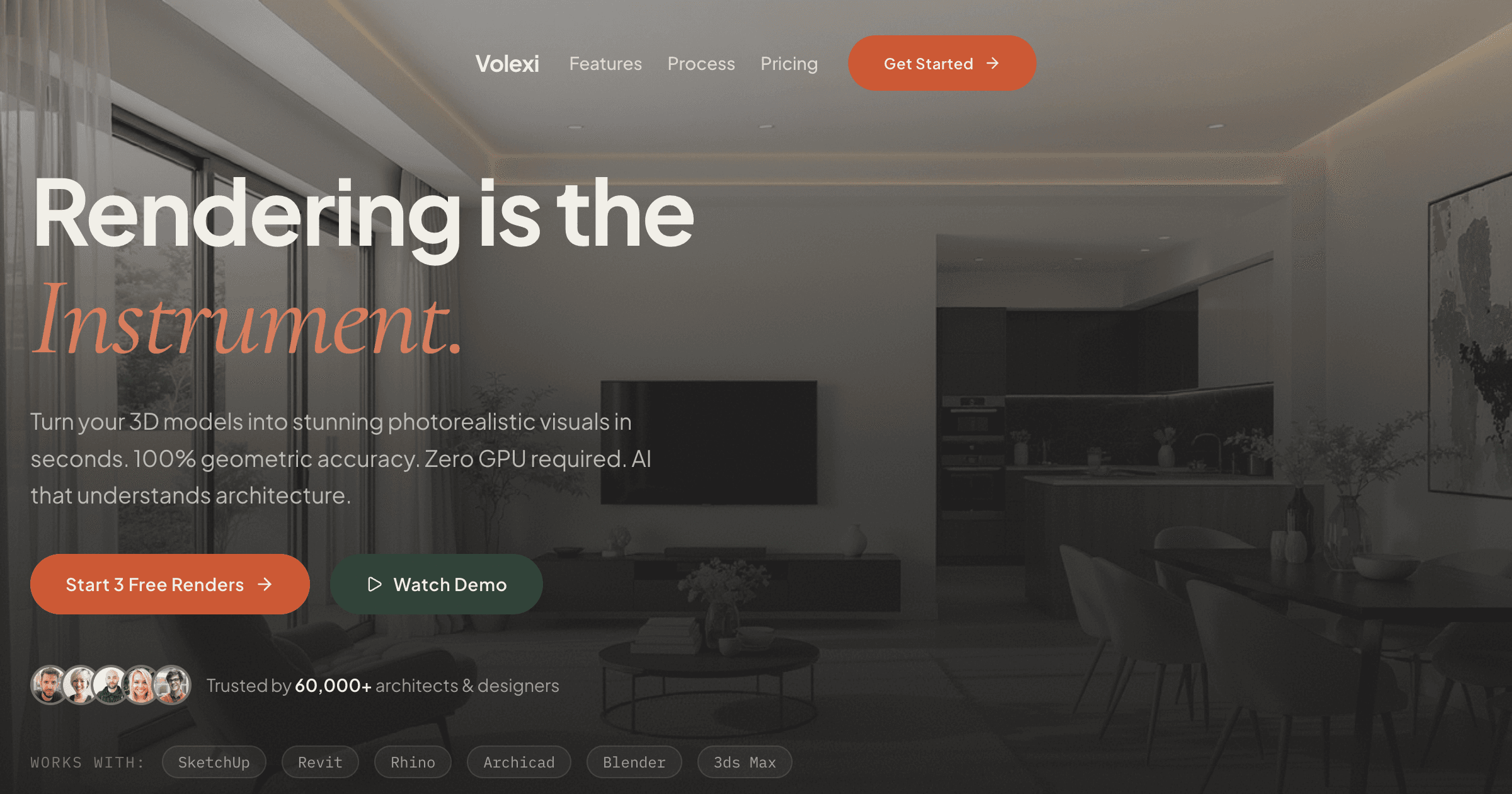
Rendering in SketchUp means turning your 3D model into a 2D image that communicates the design — for a client, a planning submission, an option board, or a portfolio. SketchUp itself ships with stylised viewport export, but every architect crosses the moment when stylised export is no longer what the project needs. That's the moment most beginners look up how to render properly.
There are three honest paths in 2026, and the right one depends on the deliverable. This guide walks each path with the actual steps, then ends with the simplest of the three — exporting to Volexi — for architects who want a photoreal output without learning a render engine.
What are the three ways to render a SketchUp model in 2026?
There are three: SketchUp's built-in 2D Graphic export with styles, a plugin-based renderer like V-Ray or Enscape installed inside SketchUp, or a cloud AI renderer like Volexi that takes a PNG export from SketchUp and returns a photoreal image without a plugin.
Each path solves a different problem. Built-in stylised export is fast and free but is not photoreal — the output looks like a SketchUp model with a style applied, which is useful for diagrams and concept-stage line drawings. Plugin renderers produce photoreal output at the cost of a workstation GPU, a learning curve, and an annual licence. Cloud AI is the lightest path — no plugin, no GPU on your machine — and produces photoreal stills directly from your existing 2D export.
- Path 1: Built-in 2D Graphic export. SketchUp ships with viewport export through File > Export > 2D Graphic. Output is the model with the active style applied. Free, fast, not photoreal. Right for concept-stage diagrams and line-drawing deliverables.
- Path 2: Plugin renderer (V-Ray, Enscape, Lumion-via-LiveSync, D5, Twinmotion). Install a renderer inside or alongside SketchUp; configure materials, lights, and cameras; render to image. Photoreal output, GPU-bound, plugin-bound, with a learning curve. Right when daily rendering volume justifies the seat.
- Path 3: Cloud AI rendering (Volexi). Export a PNG via Path 1, upload it to a browser, write a prompt, choose an engine, render. No plugin, no GPU, no asset library. Right for architects who want photoreal stills without learning a render engine.
For the dedicated SketchUp-specific overview, the SketchUp rendering guide covers the workflow in cluster format. This post focuses on the step-by-step beginner path.
How do you render a SketchUp model using only the built-in tools?
To render a SketchUp model using only built-in tools, frame the view with a SketchUp Scene, choose a style, then export through File > Export > 2D Graphic at presentation resolution. The output is your model with the style baked in, suitable for line-drawing and concept-stage deliverables.
This is the path most beginners are doing already without thinking of it as "rendering". It is rendering — just non-photoreal rendering. The output is the model itself, presented through the lens of a chosen style. Trimble documents the export in the official SketchUp 2D graphic export reference.
- Open your model and frame the view you want to render. Use Camera > Standard Views or orbit manually until the framing matches the deliverable.
- Save the framing as a Scene via Window > Scenes > Add Scene. Scenes preserve the camera, style, and any visible-layer state, which is the way to reuse the same framing later.
- Choose a style via Window > Styles. SketchUp ships with line-weight, watercolour, and sketchy-edges styles; you can also build your own. The style is the rendering — for this path, the style is the visual language of the output.
- Export through File > Export > 2D Graphic. Choose PNG, set the resolution to at least 1920px wide for presentation use, and disable anti-aliasing only if a specific deliverable requires hard edges.
This is the cheapest, fastest, simplest workflow in SketchUp, and it covers the deliverables a lot of architects assume they need a render engine for. The reason this path stops being enough is photorealism: stylised export will never look like a photograph because that is not what it is doing. When the brief crosses into photoreal territory, you need either a plugin renderer (Path 2) or a cloud AI renderer (Path 3).
How do you render a SketchUp model with Volexi without installing a plugin?
To render a SketchUp model with Volexi, export the view as a PNG using SketchUp's built-in File > Export > 2D Graphic, then upload the PNG to Volexi in the browser, write a prompt describing the materials and atmosphere, choose an engine, and render. No plugin and no GPU on your machine.
This is the same first export step as Path 1, with the AI render added on top. A diffusion-model renderer reads the PNG as a conditioning signal and generates a photoreal version of the same scene, guided by your prompt. The output is photoreal not because Volexi is rendering the SketchUp scene physically — it isn't — but because the diffusion model has learned what photoreal interiors and exteriors look like and is producing one that matches your composition.
- In SketchUp, frame your view and save it as a Scene. For interior renders, applying a neutral mid-grey base material to all surfaces before export gives the AI a clean geometry signal without colour information that might fight with the prompt.
- Export the Scene via File > Export > 2D Graphic as a PNG at 1920px or larger. Volexi accepts JPEG, PNG, and WebP. PNG preserves the cleanest line edges, which Blueprint mode uses as conditioning.
- Open Volexi, upload the PNG, and write a prompt describing the materials, atmosphere, and time of day you want. Example: 'warm evening light, polished concrete floors, Scandinavian palette'.
- Choose an engine. Blueprint locks the output line geometry to your SketchUp export — use it when wall placement and structural edges cannot drift. Atelier is the balanced default. Studio is the cheaper iteration branch. Muse is for creative reimagining where strict geometry preservation is not the goal.
- Render. The output appears in the browser. If you want to refine, edit the prompt or change the engine and render again — each render is one credit, so iteration is cheap.
The $5 Intro pack includes 15 credits, which is enough to test each engine type on the same exported view several times and see which fits the brief. Larger packs start at $12 for 50 credits, and credits never expire.
Which SketchUp render path should a beginner pick?
For most beginners, the right starting point is to use the built-in 2D Graphic export for concept-stage line drawings and the cloud AI path for photoreal stills, then add a plugin renderer only later if daily volume or hero-shot quality demands it.
The pragmatic case for starting with Paths 1 and 3 is friction, not capability. Both paths are inside what a SketchUp user already knows how to do — Path 1 is one menu option in SketchUp itself; Path 3 adds a browser upload to that same menu option. Path 2 — installing and learning a plugin renderer — is the heaviest lift, and it stops being worth the lift if your output is mostly presentation stills that the cloud AI workflow already covers.
A practice that produces a hero render once a quarter does not need V-Ray installed. A practice that produces a fly-through walkthrough every week does need a plugin renderer like Enscape. Most architecture studios sit closer to the first description than the second, and most beginners are choosing between Path 1 and Path 3, not Path 2.
Go deeper: SketchUp rendering
The dedicated SketchUp rendering guide covers the workflow with worked examples — interior, exterior, and elevation views — plus the engine choice that fits each brief, and the trade-offs against plugin renderers and real-time engines.